If you've tried AI and thought "nice, but I still have to copy everything back into my own apps", this is the missing piece.
A connector is a direct link between your AI assistant and one of your apps, like Google Sheets, Gmail or Canva. You sign in to the app once and approve what the AI assistant may do there. After that, it can find things in that app and do work in it for you, instead of you copying and pasting between a chat window and your tools. That's the moment AI stops being a clever chat and starts saving you real time.
I use Claude, so the steps and screens below are Claude's. Other AI tools have their own version of the same idea.
A chat without connectors is a smart friend with no hands
Picture asking a friend to update your content calendar. Without connectors, they can tell you exactly what to change, and then you go change it. With a connector to Google Sheets, they open the sheet and change it themselves, and you check it.
Anthropic, the company behind Claude, describes a connector as a link to an outside app or service, so Claude can find information there and take actions for you. Two parts: find (read your sheet, search your Drive) and act (add a row, make a draft, edit a design).
What each connector does in my actual week
Here's what I have switched on, and what it's for. Every one of these is real, and every one is something I used to do by hand or not at all.
- Google Sheets. My whole to-do list is one spreadsheet (the Command Center tracker). My AI assistant reads it every weekday morning to tell me what to do today, and marks rows Done when work finishes. This is the connector everything else hangs on.
- Google Drive and Google Docs. My written rules live in Google Docs, like the playbook for how my Pinterest pins should look. Scheduled jobs open those docs and follow them, so I never re-explain my rules.
- Canva. My pins start from my own Canva templates. The Canva connector lets Claude open and edit my designs. (The whole pin workflow.)
- Descript. For Jake's running channel, Claude pulls the video clips into a new Descript project, so when he opens Descript, his footage is already there. (How that system works.)
- Gmail and Google Calendar. Claude can read them, and it can prepare a draft email for me. My rules say it never sends anything to a real person without my yes, so I press send.
How to add a connector
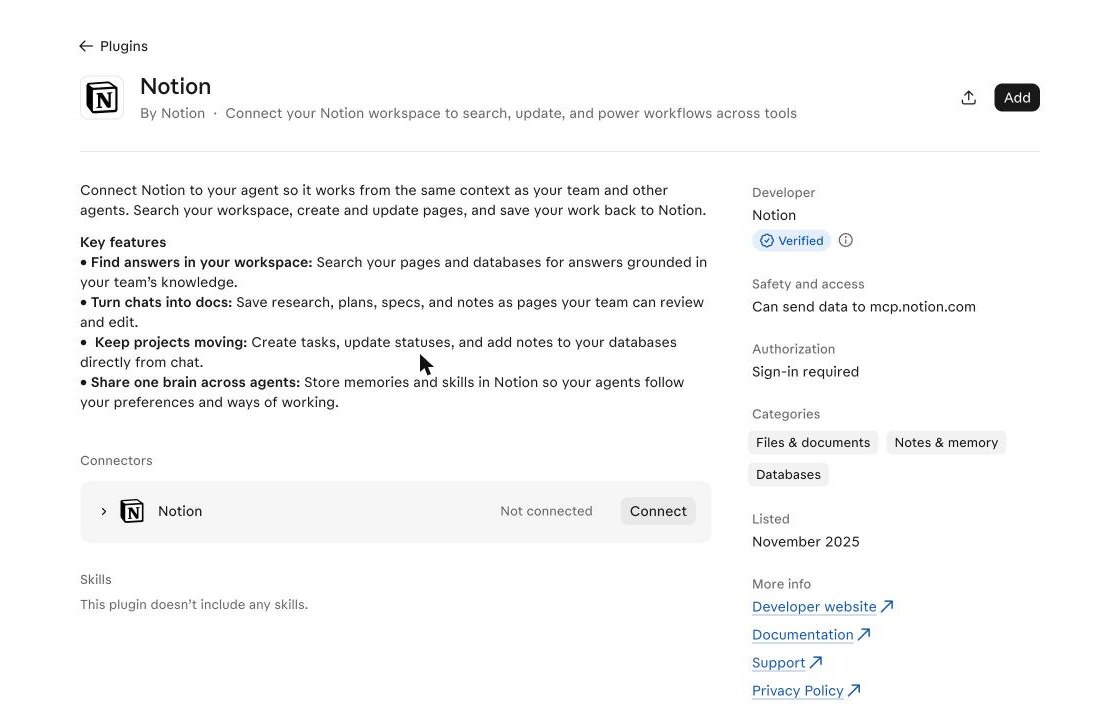
- In Claude, click Plugins in the left sidebar.
- Click Connectors at the top of the page to see only connectors, then type the app's name in the search box (for example "Google Sheets").
- Click the app in the results. Its page opens.
- Click Add at the top right, or Connect next to the app's name under Connectors.
- Sign in to that app, and read what Claude is asking to do before you approve it.
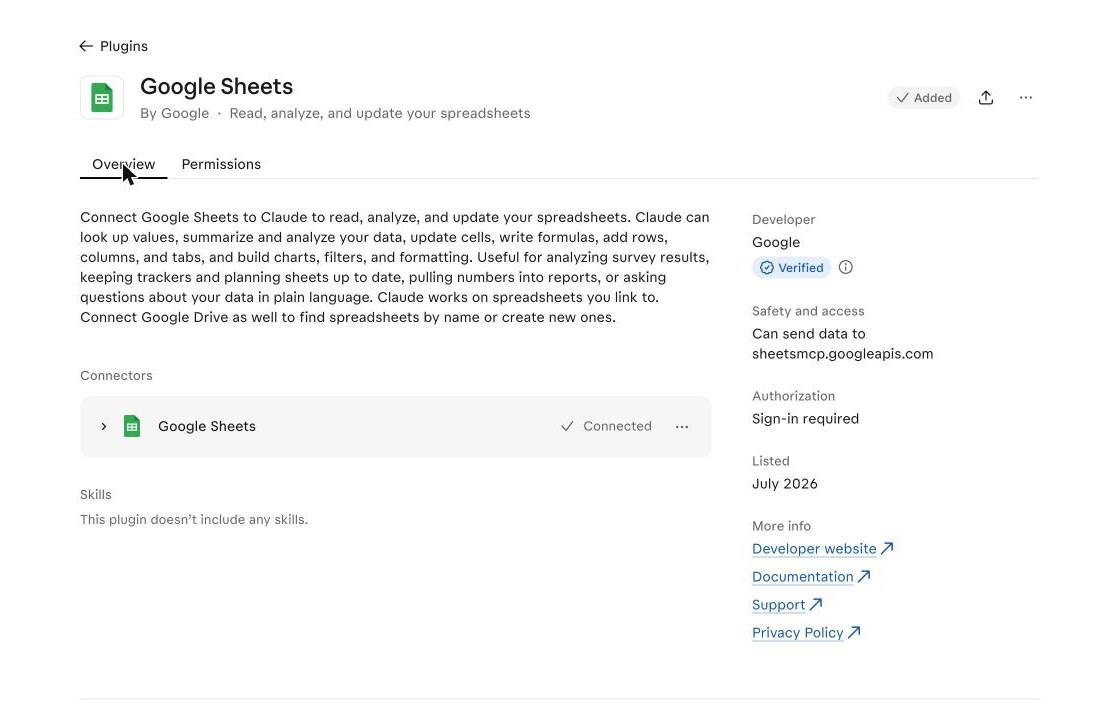
You should see: back on the app's page, the button at the top now says Added, and the line under Connectors says Connected with a check mark. On the Plugins page, the app now shows under Your plugins.
In a chat, the + button in the message box has a Plugins option, where you can switch each one on or off for that conversation.
A connector connects once for all your projects, so you don't redo it for each one.
You decide what it may do without asking
This is the part I'd want every new person to know. On each connector's page, click the Permissions tab. Under Tool permissions, everything the connector can do is listed in groups (for Google Sheets: Read-only tools and Write/delete tools), and each one can be set to:
- Always allow: it just does it.
- Needs approval: Claude asks before each use, except in Auto mode.
- Always ask: Claude asks before each use, even in Auto mode.
- Blocked: it can't do it at all.
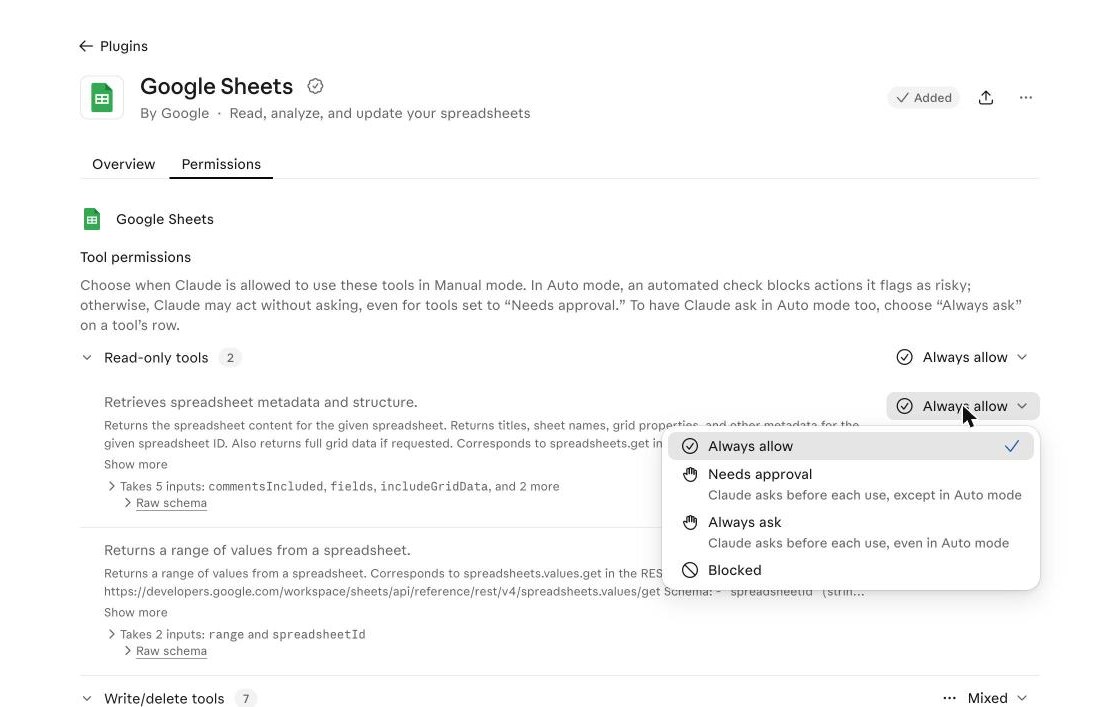
That "except in Auto mode" matters. Claude's page explains that in Auto mode, an automated check blocks actions it flags as risky, and otherwise Claude may act without asking, even for tools set to Needs approval. So if you want Claude to stop and ask no matter what, pick Always ask.
And in a chat, when Claude wants to use a connector, you may see a box asking you to allow it. If you're unsure, allow it just this once and see how it goes.
A good starting rule: let it read freely, and set anything that changes, sends or deletes to Always ask. Loosen it once you've watched it work for a week or two. That's exactly how I got to my standing yeses: the jobs I said yes to so many times that I stopped needing to be asked.
One more thing to know: a connector signs in as you. It uses your account in that app, with the access you approved. If you're a VA working in a client's account, think about whose account you're connecting before you click.
When there's no connector
Not every app has one. Two of the tools I use most, Pinterest and Kit (my newsletter tool), don't have a connector in my setup. For those, my AI assistant uses Claude in Chrome, a browser extension that lets it click around websites I'm already signed in to, the way I would.
That works, but it's slower and more fragile than a connector. Two honest examples:
- Kit only lets one account be signed in per browser. I run more than one newsletter, and when the browser was signed in to my travel blog's Kit account, a task that needed this site's account couldn't read it until I switched.
- My three Pinterest accounts share one browser. When two jobs tried to schedule pins at the same time, one switched the account under the other and an upload froze. The fix was a "lock" row in my tracker: whoever is using Pinterest marks it "In use", and everyone else waits.
So when a connector exists, I use it. When it doesn't, the browser fills the gap, with a few more rules.
Turning one off
On the connector's page, click the ... button at the end of the app's row under Connectors, then Disconnect. That signs Claude out of that app. Switching a connector off inside one chat only hides it from that chat; it doesn't sign it out. If you stop using an app, disconnect it.
The one-line answer
A connector gives your AI assistant a signed-in link to one of your apps, so it can do the busywork there and not just describe it. You choose which apps, and what it may do in each without asking. The ideas, designs and decisions in those apps are still yours.
New here? Start with one: connect Google Sheets and try the tracker. Or join the newsletter for the free template it runs on.