Do you do the same jobs on the same days every week? A report on Monday, drafts on Wednesday, numbers on Friday? Then this one's for you. It's written for virtual assistants first, and it works just as well for creators running their own blog.
A scheduled task is a job your AI assistant does on its own, at a time you pick. You write the instructions once: what to do, and what never to do. Then it runs every weekday morning, every Monday, or whenever you chose, and tells you what it did. It shows up on time, even when you don't.
I use Claude, where the feature is called scheduled tasks. Below: the ones I run, how to set one up, and what I learned from the runs that didn't go to plan.
What mine do in a normal week
These all run for my own sites and my husband Jake's running channel:
- Every weekday morning: my morning queue reads my tracker spreadsheet and sends a short list of today's tasks to my phone.
- Every weekday around lunch: a content check looks for new posts on my sites. When a new post is live on this site, it makes and schedules its first three Pinterest pins.
- Monday: a post check re-checks any tutorial here that hasn't been checked in 30 days (how that works), and opens a proposed fix. It never merges it.
- Monday: drafts of the week's Facebook posts for Jake's page go into my queue for one yes.
- Wednesday: this site's weekly drafts. Hidden draft posts, ready for my one review sitting on Thursday.
- Monday, Wednesday, Thursday and Friday: publish day. If a post I already said yes to is dated today, it goes live.
- Once a month: the numbers (newsletter, site visits, Pinterest) get logged in one tab of my tracker. My just-for-fun sites get theirs every other month.
None of these publish, pay or send anything to a real person without my yes. That's written into every one of them.
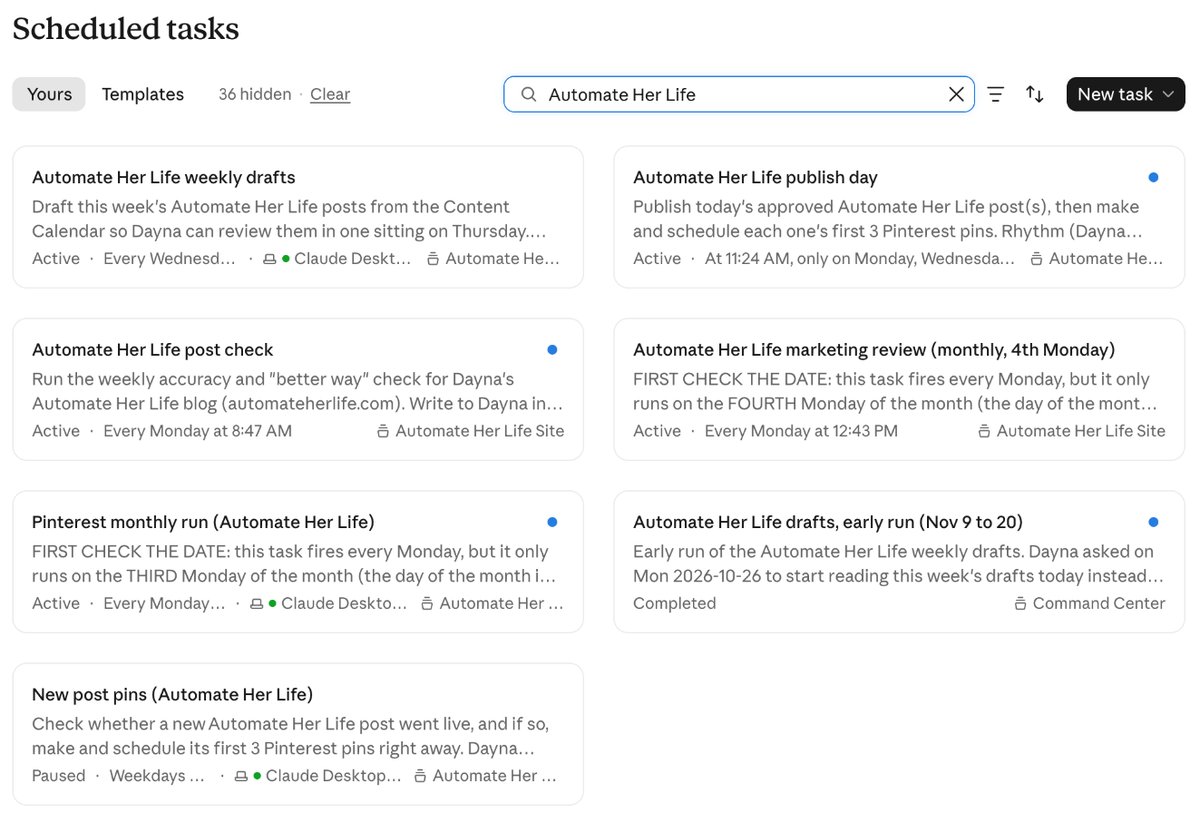
Here's what this site's share of them looks like on my Scheduled page (I searched "Automate Her Life" to show just these). Each card shows the task's name, the start of its instructions, whether it's Active or Paused, when it runs, and which project it belongs to.
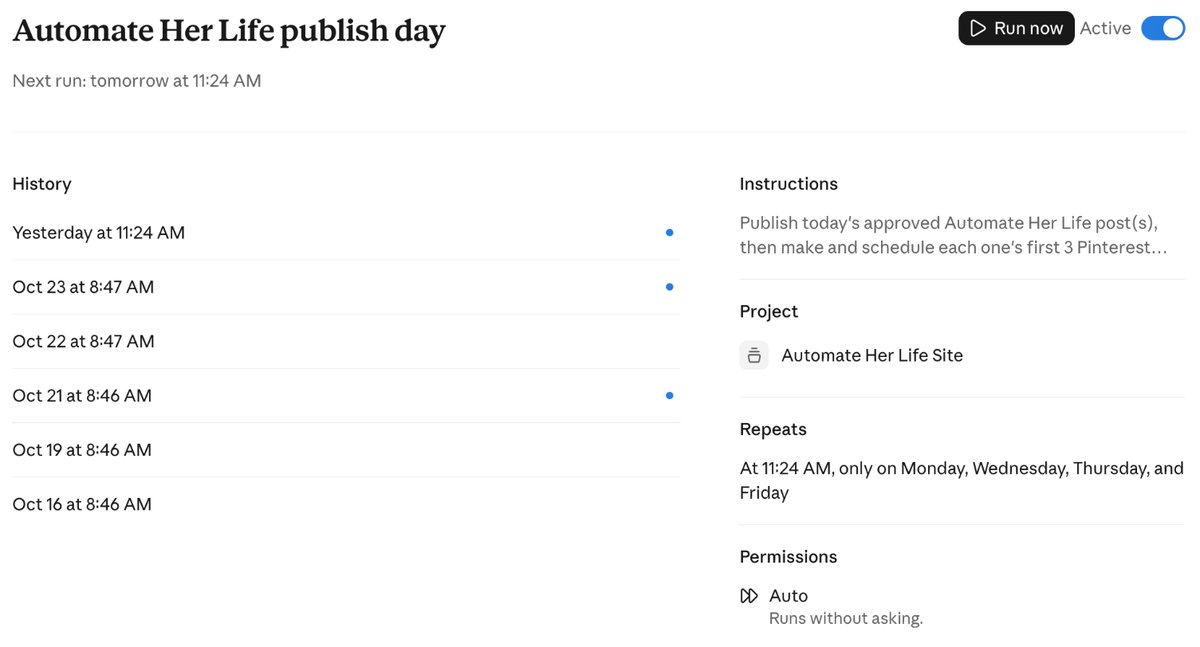
Click any card to open that task. On the left is its History: one line for every time it ran, and you can click any line to read exactly what it did. On the right are its instructions, its project, when it Repeats and its Permissions. At the top, Run now runs it straight away, and the Active switch pauses it.
How to set one up
The easy way: ask Claude. You don't have to write a scheduled task yourself. In a chat, describe the job the way you'd tell a person: "Every Monday morning, check my tracker for anything overdue and send me a short list." Claude writes the instructions, suggests a day and time, and sets the task up once you say yes. That's how almost all of mine started. Claude can also help you fix one later: tell it what went wrong and it updates the instructions.
You can start the same way from the Scheduled page: click Scheduled in the left sidebar, then New task at the top right, and choose Create with Claude.
The hands-on way: set it up yourself. Same menu, but choose Set up manually.

A New scheduled task window opens. (Changed your mind? The Set up with Claude instead link at the top switches to the easy way.)
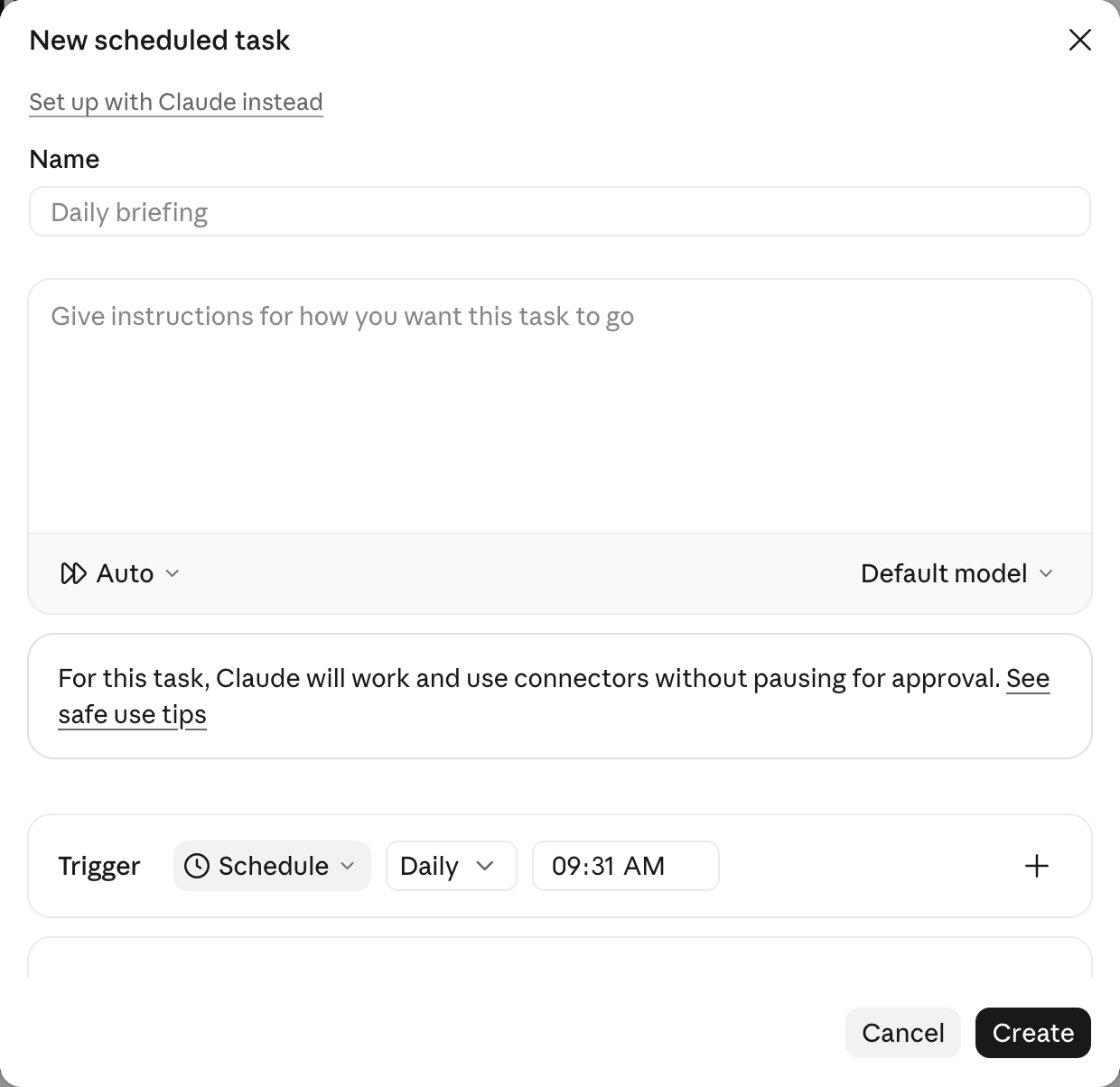
Fill it in from the top:
- Name: something you'll recognize in a notification, like "Monthly numbers".
- Instructions: the big box. The whole job, in plain words (more on this below).
- Auto: the permissions setting under the box. Auto means it works and uses your connectors without stopping to ask, which is what you want for a job that runs while you're asleep. So your instructions have to carry the limits.
- Trigger: keep Schedule, then pick how often (like Daily) and the time. The + on the right adds another trigger.
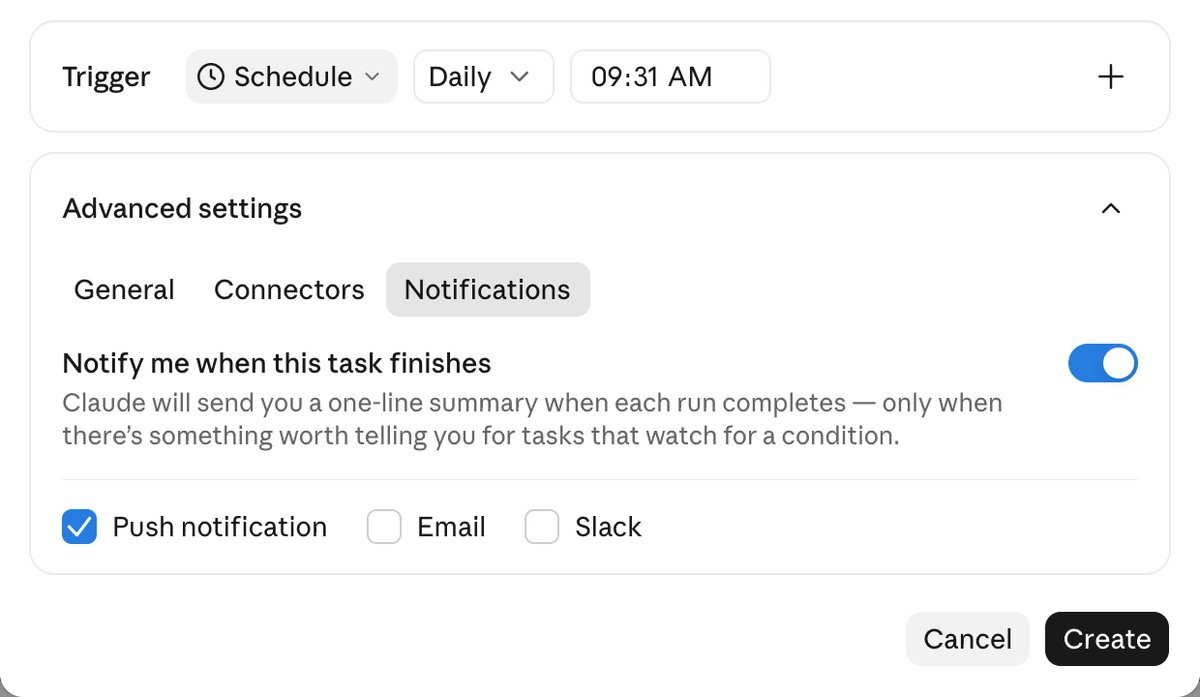
- Advanced settings, at the bottom, has three tabs. On General, pick the Project the task belongs to, so it reads that project's instructions too. (If projects are new to you: one project per area, all sharing one tracker.) On Notifications, keep Notify me when this task finishes on and choose Push notification (your phone), Email or Slack.
- Click Create.
That part takes two minutes. The instructions are where the real work is, and they're the part Claude can help you write.
Write it for someone on their first day
Here's the thing that took me a while to get: every run starts fresh. It doesn't remember last week's run or the chat where you explained everything. It reads the instructions, the project's instructions, and whatever files and apps it can reach. That's all it knows.
So I write every task the way I'd write a handover for a new hire who's never met me. Each of mine has the same parts:
- What the job is, and why. One or two sentences, with who asked for it and when.
- Where everything is. The exact spreadsheet, tab and column names, the docs with the rules, the website.
- NEVER, in capitals. Mine say: never publish, never send an email or message, never spend money, never delete anything. Drafts only.
- The steps, numbered. In order, with what "done" looks like for each.
- What to do when there's nothing to do. Mine say: stop, send no notification, and end with one line, like "No new posts and no checks due." Otherwise your phone fills up with "nothing happened" messages and you stop reading them.
- Write down what happened. I keep one Google Sheet with every task in my life and business on it, one row per task: my Command Center tracker. Each scheduled task ends by updating its own row there. If it finished, the row says "Done" with a link to what it made. If it got stuck, the row says "Waiting on" plus who and why. That way I can see what every task did without opening anything else. My rule: if it isn't in the tracker, it didn't happen. No tracker? You still have options inside Claude: turn on Notify me when this task finishes so the report lands on your phone, open Scheduled in the sidebar to read any past run, or ask the task to add a dated line to one running log doc.
- The report. Short, and only about what changed.
VAs: if you keep written step-by-step instructions for a client's recurring jobs (often called an SOP, a standard operating procedure), you're most of the way there. A scheduled task is the same thing, written for an AI assistant.
What went wrong (so yours doesn't)
A task couldn't reach what it needed. Recently I asked for a week of this site's drafts a few days early, because my usual review day wasn't going to work that week. A one-time scheduled task ran the job. It couldn't open this site's files on GitHub (where the website lives), so it drafted nothing. But it did the right thing: it wrote exactly what failed into a tracker row and how to fix it. The next day, the drafts were made in this site's project chat, which could reach GitHub. This post is one of them. Lesson: test a new task by clicking run once while you're watching, and make it say clearly when it can't do something.
A task needed my computer. Most scheduled tasks run on Claude's side, so your computer can be off. But a task that uses your web browser (mine schedule Pinterest pins through Chrome) needs your computer on and awake. When I knew my computer would be offline for a week, I added one-time catch-up tasks for the days after, so the browser jobs would run once it was back.
Two tasks bumped into each other. All three of my Pinterest accounts share one browser. One afternoon, one session switched the Pinterest account while another was halfway through an upload, and the upload froze. The fixes: the monthly Pinterest tasks moved to their own time slot, at least 45 minutes away from the others, and every task now checks a "lock" row in the tracker before touching Pinterest. If it says "In use", it waits.
Too many little tasks. I had one task for new posts and a separate one for new-post pins. Every run starts its own chat, so I folded them into one. Fewer, slightly bigger tasks are easier to keep track of.
Which jobs should be scheduled tasks?
Ask three questions about any job you do on a schedule:
- Does it happen on a rhythm? Every Monday, every month, every time a post goes live.
- Could you write the steps down for a stranger? If it's "I just know", it's not ready yet.
- Can the result be checked or undone? Drafts, reports and tracker updates: yes. Sending, paying, publishing: those wait for a human, every time.
If you answer yes three times, it's a good first task. A numbers report is a perfect first one: it only reads, and the worst case is a wrong number you'll spot.
The one-line answer
A scheduled task is your instruction, on your schedule, run by your AI assistant while you do something else. You write the rules once, including what it must never do. It does the repeat work and writes down what it did.
Want the instructions I use? My standing yeses post has the rules most of these tasks follow, and the newsletter gets the templates first.