Black Friday is Friday, November 27 this year, and the busiest shopping week of the year doesn't have to mean you glued to your laptop instead of eating leftovers. Set it up now and it runs on its own.
Cyber Monday follows on November 30. Write your holiday emails now and schedule them in your newsletter tool, then schedule your holiday pins on Pinterest, so both go out on their own that week. An AI assistant can draft the emails from your own posts and make the pins from your own templates; you write the personal part and say yes.
Two weeks is plenty. You can do all of this in a couple of short sittings, and you've got this.
First, decide what you're actually sharing
Before any tool, one decision that's yours: what do you want readers to see that week?
- A sale or a launch, if you sell something.
- A gift guide made from things you've already written about or truly use.
- Your best free stuff, if you don't sell anything yet. (Here, the first paid guide is still being made.) A "here's what to read while everyone's shopping" email is a lovely, low-pressure thing to send.
Write the one sentence you want people to remember. Everything below hangs on it.
Not sure which posts to share? Your AI assistant can help you pick. Paste this into a chat:
Here are my most popular blog posts: [paste 5 to 10 links]. My readers are [who they are]. Which 3 would make the best "something good to read while everyone's shopping" email for Black Friday week, and why? Keep it short.
You'll get three picks with a reason for each. The choice is still yours.
Why two weeks ahead works
For last year's holidays, Pinterest said that between October and December someone searches for a gift on Pinterest every six seconds, and that self-gifting wishlists build momentum from October and peak in November, with a surge in gift ideas for others in December. So holiday pins love a head start, and two weeks give them one: pins you schedule now reach people while they're still making their lists, right through Cyber Monday and their December gifts. (If you'd like to start in October next year, that's a lovely bonus, not a must.)
Email is different: a newsletter lands the moment you send it. That's why it's the part to get exactly right before the big day.
Part 1: Your holiday emails, scheduled in Kit
I use Kit (an email newsletter tool). Here's how to have the week's emails written and scheduled before it starts.
Step 1: Check your time zone first
Kit sends broadcasts (one-time emails to your list) on your account's time zone, and Kit starts every account on US Eastern Time. If you live anywhere else, fix that before you schedule anything, or your "8 a.m." email goes out at a very different hour. It's step 3 of my Kit settings checklist.
If you use Claude in Chrome (the browser extension that lets Claude click around websites you're signed in to), it can check this for you. Sign in to Kit yourself first, then paste:
Open my Kit account in Chrome, click my profile icon in the top right, choose Email, scroll to Default Time to Send Emails and tell me what my default time zone is. If it isn't [your time zone, for example Paris or Chicago], change it to that, click Save Changes, reload the page, and show me it stuck.
You should see a reply with the old and new time zone.
Step 2: Let your AI assistant draft from your own posts
For this site, I have a small script my AI assistant runs that turns the week's posts into a Kit draft: each post's title, its description and a link. It never sends anything. The draft starts with a line that says "[YOUR HELLO HERE]", and that part is mine: it never fills it in.
You don't need a script to do the same. Paste this into a chat:
Draft a short holiday newsletter for my list. Use these posts: [paste the links]. For each one, write one or two sentences on why it's worth reading this week, then the link. Keep my usual tone: [describe it, or paste a past newsletter]. Leave a line at the top that says [MY HELLO HERE] for me to write myself. Don't invent offers or discounts. Then give me 3 subject line ideas.
You'll get a draft to paste into a new Kit broadcast, with the top left blank for you.
Then do the part only you can do: write the hello. Why these things, this week, from you.
Step 3: Schedule it
From Kit's help center, as of November 2026:
- Open your broadcast and go to the Publish page.
- Choose Send email, then check the From address and who it goes to.
- Click the pencil icon next to Send now. A calendar appears: pick the date, then the time. (It uses your account's time zone from Step 1.)
- Click Continue in the bottom right corner, then Schedule Broadcast in the pop-up to confirm.
This click is yours. It sends to real people, and my AI assistant never schedules a send to my subscribers itself (Kit has even stopped it from trying in the browser). It drafts; I press Schedule.
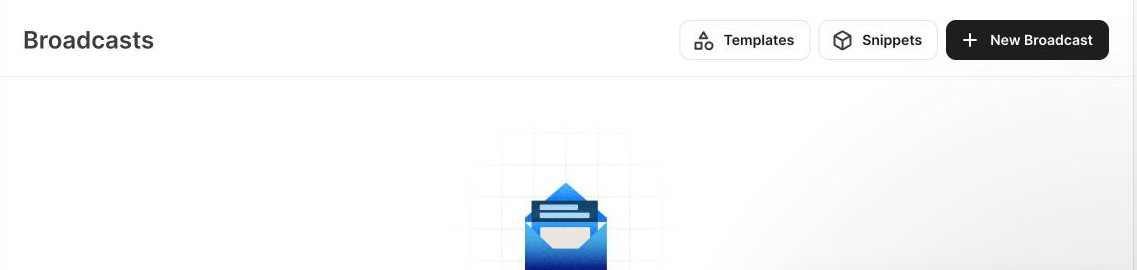
Good to know: you can still change it. On the Broadcasts page, click the three dots next to the scheduled email: Edit changes the email, and Unschedule lets you pick a new date and time.
One email or three? Up to you. A common shape is one on Black Friday morning and a short reminder on Cyber Monday. Fewer, kinder emails beat a pile of "LAST CHANCE".
Part 2: Your holiday pins, scheduled on Pinterest
Step 1: Pick the posts
Use the same posts you chose for the email. Pins and email pointing at the same pages is less work, and the message is consistent.
Step 2: Make fresh pins from your own templates
My pins start from my own design templates, and my AI assistant makes each new pin from them: a new headline and a new image from the post, in my colors and fonts. I review the batch in one look. (The full pin workflow.)
Making pins from your own templates? Here's a prompt for the words, so every pin matches its post:
Here are [number] posts I want to pin for the holidays: [paste the links]. For each post, write 2 Pinterest pin titles (under 100 characters) and a 2 to 3 sentence description with 3 or 4 keywords people search for. Holiday angle, my voice: [describe it]. Only say what each post actually says.
You'll get two fresh titles and a description per post, ready for your templates.
My rules, which work well for a holiday push too:
- Up to 2 pins per post per week, at least 3 days apart.
- Every pin is a fresh design with a fresh title, never a near-copy.
- Pins for the same post in the same week go on different boards.
- Noon is my default time; a second pin on the same day goes at 7 p.m.
Step 3: Schedule them
When you create a pin on Pinterest, switch on Publish at a later date, pick the date and time, and click Schedule. Pinterest lets you schedule a pin up to 30 days ahead, which covers everything from now through Christmas planning.
Claude in Chrome can do the scheduling clicks for you. Sign in to Pinterest yourself first, then paste:
Open Pinterest in Chrome and schedule these pins one at a time: [for each pin: the image file, title, description, link, board, date and time]. Before each Schedule click, read the form back to me. When you're done, open my Scheduled Pins page and check no two pins share a time slot.
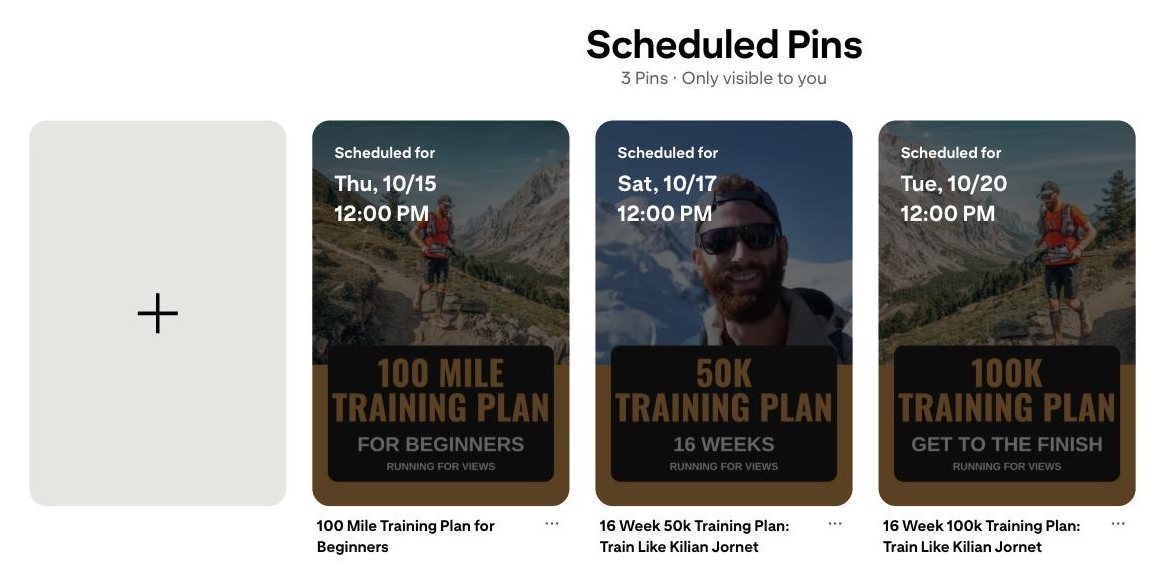
Afterwards, check your Scheduled Pins page yourself too: every pin should show its date and time, and no two should land in the same slot.
Your plan, at a glance
- Today: decide what you're sharing. Fix your Kit time zone.
- This weekend: emails drafted, your hello written, scheduled. Pins made, reviewed, scheduled.
- Black Friday, November 27: your email goes out and your pins are already live. You're doing literally anything else.
- Cyber Monday, November 30: the reminder goes out on its own.
- The week after: look at what got opened and clicked, and jot down anything you'd love to try next year. Or paste this:
Open my Kit broadcasts in Chrome and tell me the open rate and click rate for my Black Friday and Cyber Monday emails, and which link got the most clicks. Then tell me what went well, and give me 3 ideas to try next year.
Who does what
You choose what to share, write the hello, and say yes to the emails and the pins. (VAs: it's the same plan for a client's holiday week, done ahead.) Your AI assistant drafts the emails from your posts, makes the pins from your templates, and does the scheduling clicks. It never sends or posts anything you haven't approved.
That's the whole point of setting it up ahead: the busiest shopping week of the year, and none of it needs you that day.
Want more set-it-ahead checklists like this one? Join the newsletter.