If you run a blog, a YouTube channel or a newsletter, here's a way to grow your email list that doesn't involve begging: build one small free tool that answers a question your readers ask over and over, and offer an email they actually want, right inside it. You bring the niche knowledge. An AI assistant does the building busywork. People sign up because the email is useful to them, not because a pop-up cornered them.
(If you're a virtual assistant, this is a lovely project to pitch to a client: they know the niche, you and your AI assistant do the setup.)
I just did this twice for my husband Jake's ultra running site, Running for Views. Both tools are brand new (the first went live on October 15, 2026), so I don't have results to brag about yet. What I do have is the whole plan, and that's what this post is.
What a "free tool" means here
Not an app, and not something you charge for. One page on your own website that does one helpful job: a calendar, a quiz, a "which one is right for me" finder. It answers a question your readers already ask, once, for everyone.
And then it offers the obvious next step by email.
The two tools I built for Jake
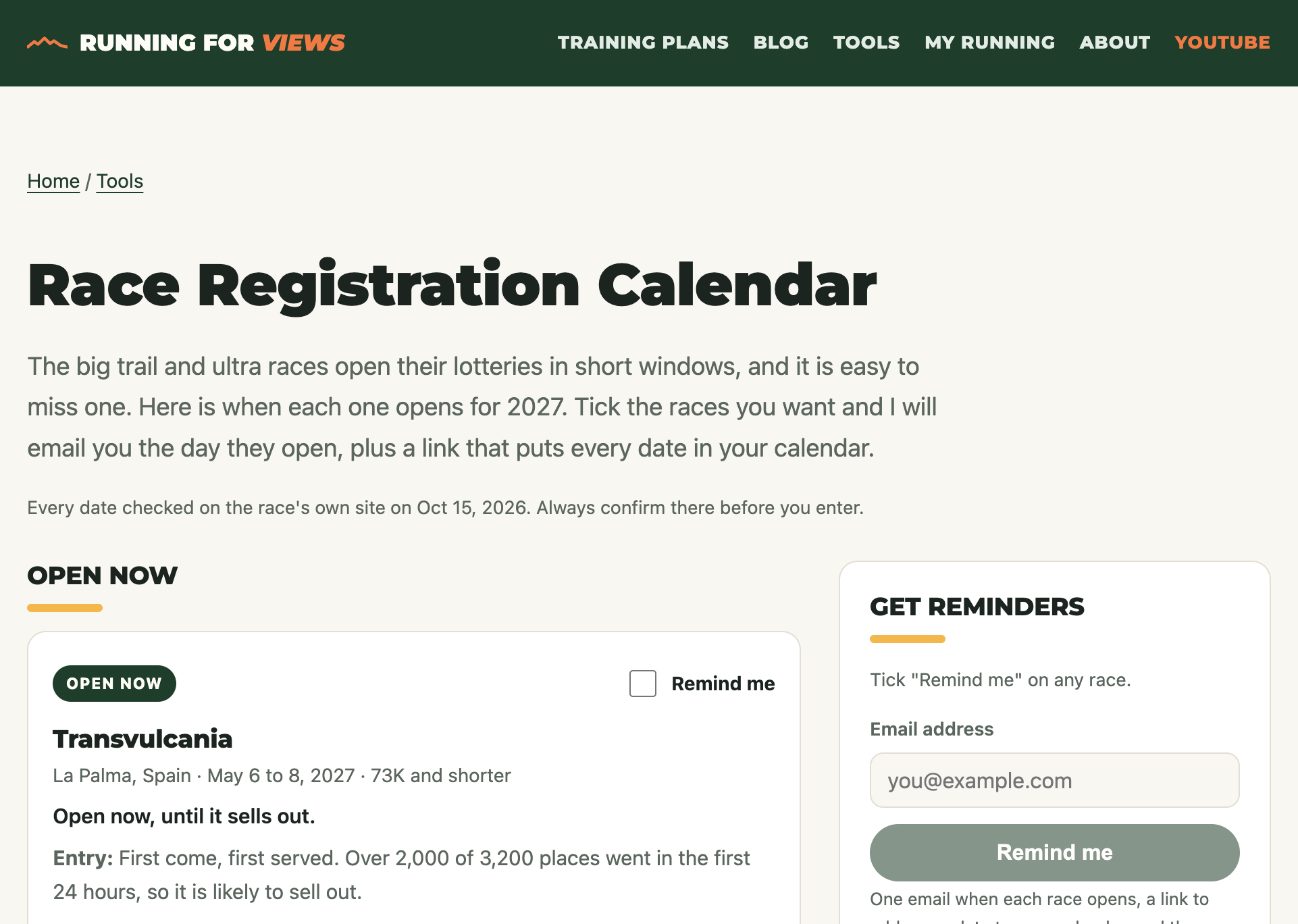
1. The Race Registration Calendar. Big ultra races don't just let you sign up whenever you like. Many open registration, or a lottery, for a short window once a year. Miss it, and you wait a whole year. The Western States lottery, for example, opens November 1 and closes November 21, with the draw on December 5 (checked on the race's own site on October 19, 2026).
So "when does registration open?" is a question runners keep asking. The calendar answers it in one place:
- a page listing the races and their registration dates
- a calendar file (a small file that adds every date to Google Calendar, Apple Calendar or Outlook in one go) with 23 confirmed dates in it
- a signup box where runners pick the races they care about and get a reminder email when those open
- a small version of the signup in the sidebar of every blog post on his site
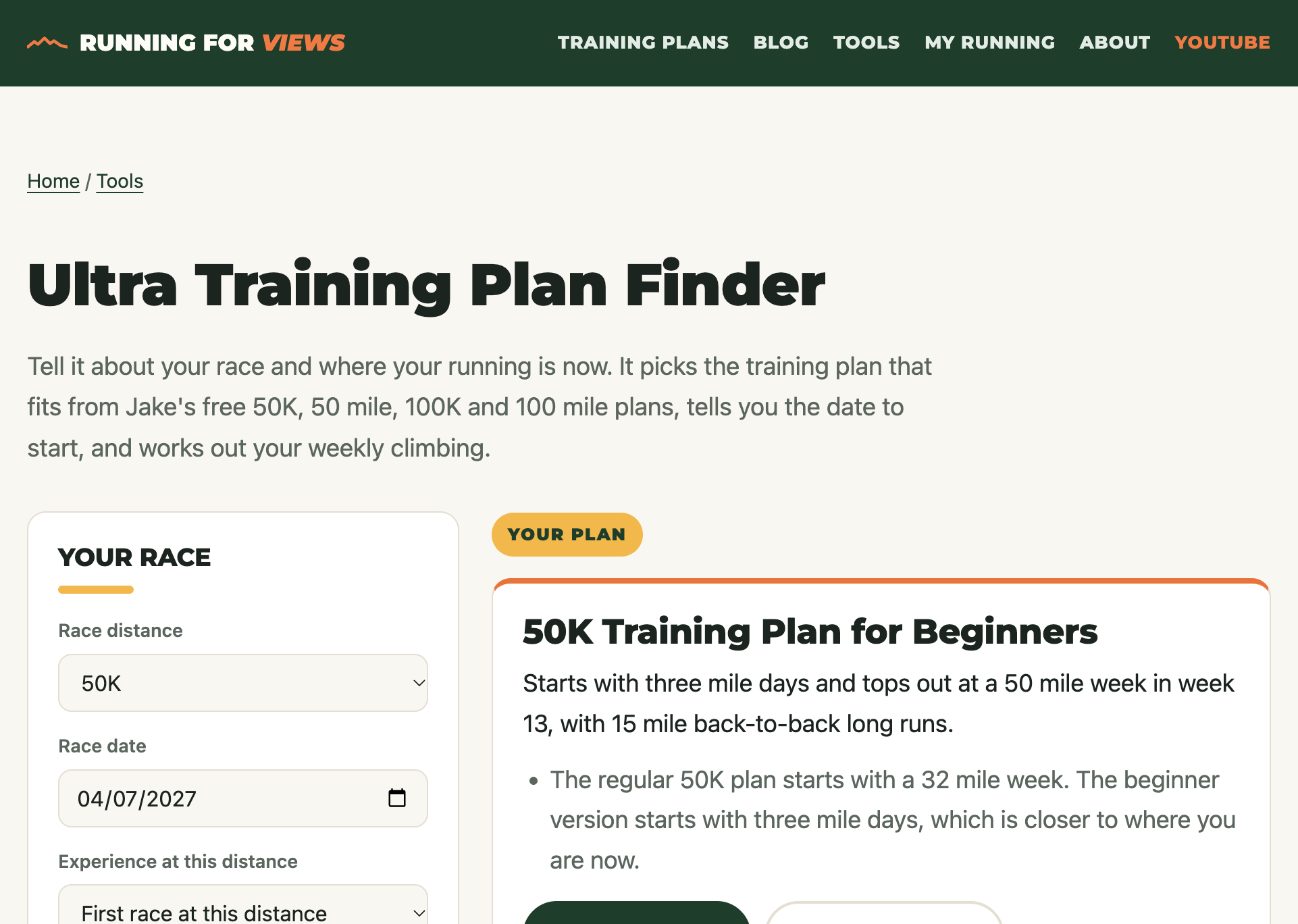
2. The Ultra Training Plan Finder. Jake has training plans for different distances and levels. The finder helps a runner work out which plan fits them, and each plan has its own signup form. It went live on October 19, 2026.
Jake said yes to both before anything went live. The races and the plans are his world. That's the important part, and it's the part no AI assistant could have made up.
Two Kit words you need: forms and tags
Jake's newsletter runs on Kit (an email tool for creators, formerly called ConvertKit). Two of its features make this whole thing work, so here they are in plain words:
- A form is a signup box. Someone types their email address into it, and they're added to your email list. You can have lots of forms, and Kit remembers which one each person used.
- A tag is a label stuck on a subscriber, like a sticky note on their name. You can later send an email only to people with a certain tag.
For the race calendar, my AI assistant made one form called "Race reminders" and 20 tags, one per race, each named "Remind:" followed by the race. When a runner signs up and picks two races, they get those two tags. When one race opens, the reminder goes only to people tagged for that race. Nobody gets an email about a race they don't care about.
That's the trick of the whole idea. The email is the thing they asked for. Not a newsletter they might like someday, but "tell me when this specific race opens." That's an easy yes.
Who did what
This is where the "AI assistant, not AI does everything" part matters.
Jake and I made the calls:
- my AI assistant looked at Jake's YouTube and search numbers and suggested a race calendar with per-race reminders. Jake said yes.
- the training plans are Jake's, and the tools follow them
- nothing went live without a yes: Jake's for the race calendar, mine for the final go on the plan finder
My AI assistant did the busywork:
- built the pages on the website
- collected the registration dates and built the calendar file with only the confirmed ones
- made the Kit form and the 20 tags and connected them to the page
- tested the whole thing from start to finish with a test signup: signed up, confirmed by email, checked both chosen tags landed on the test subscriber, then deleted the test subscriber so it doesn't count as a real reader
- put each change in as a pull request (a proposed change that waits until someone approves it) and checked the live site after it went up
It also handled the "what happens next" screens I would have forgotten: after signing up, the page says to check your inbox for a confirmation email, and after confirming, you land back on the calendar with add-to-calendar links ready.
What I haven't done yet (honestly)
These tools are a week old, so plenty is still ahead:
- No reminder email has gone out yet. The plan is a short email per race, sent only to that race's tag, drafted by my AI assistant and sent only after Jake's yes.
- The announcement email and pins for the plan finder are also waiting on Jake's yes.
- No numbers yet. I'll judge these by real signups after a few weeks, not by how clever they feel. A third tool idea (a heart rate zone calculator) is parked until then.
How to plan your own free tool
You can do the planning part with a notebook in about 20 minutes. Bring the plan to your AI assistant afterward.
Step 1: Find the question people keep asking
Scroll your comments, replies and DMs. What do people ask again and again? Good tool questions usually start with "when", "which one" or "how much":
- When does this open, launch or go on sale?
- Which one of your options is right for me?
- How much of something do I need for my situation?
Pick the one you answer most. If the answer changes every year (dates, deadlines, seasons), even better: that's where a reminder email shines.
Step 2: Write down what you know that others don't
This is the valuable part, and it's yours. For Jake, it's his races and his plans. For you it might be which trails need permits or which yarn suits which pattern. Make a simple list. Your AI assistant can tidy it and check public facts like dates, but the choices are yours.
Step 3: Decide what the email does
Finish this sentence: "Sign up and I'll email you when..." If you can't finish it with something specific, sharpen the question. Then decide how to sort people. One form with a tag per choice (like Jake's tag per race) keeps it simple.
Step 4: Ask your AI assistant to build it
Give it your question, your list, and your email rule. Ask for one page on your own site, with the signup box built in. On WordPress or Squarespace? Ask your AI assistant what's possible there; a simple page plus your email tool's own form goes a long way.
Step 5: Test it with a test signup
Before anyone sees it, sign up yourself with a test email address. If you use Gmail, adding a plus sign works: yourname+test@gmail.com still lands in your inbox. Check four things: the confirmation email arrives, the confirm link works, the right tags appear on that test subscriber in your email tool, and the page after signup makes sense. Then delete the test subscriber.
Step 6: Put it everywhere your readers already are
Jake's calendar sits in the sidebar of every blog post, on his tools page and on his homepage. Link yours from related posts, pin it, mention it in a video.
Step 7: Send the reminder when the moment comes
When the date arrives, send a short email only to the people tagged for it. Keep it to what they asked for: it's open, here's the link, here's the deadline. Your words, your call. An AI assistant can draft it, and you hit send.
Why this works
Most "grow your list" advice is about tricks. This is about being useful in a way only you can be. Your niche knowledge is the hard-won part; the building, testing and tagging is busywork, which is exactly what an AI assistant is for.
If you want to see how Jake's videos turn into posts and emails, here's the system behind his running channel. And if you're wondering how my AI assistant can do the testing and fixes without asking me every five minutes, that's my standing yeses. It all lives in my Command Center tracker.
Want the next one in your inbox? Join the newsletter.