Jake's shoe comparison video had 5,758 views and not one invitation to his newsletter. No newsletter line at all, just an old Instagram link. Nobody had noticed, because nobody rereads old YouTube descriptions.
If you're a virtual assistant (VA) looking after a client's YouTube channel, here's how to catch that: have an AI assistant read every public video description, list the ones where the newsletter link is missing, buried or broken, write the exact fix for each, and get your client's yes once before anything is saved. Then check the public video pages to make sure the fixes really went live. That's the whole audit.
If you run your own channel, this works exactly the same way. You just get to be the one who says yes.
My AI assistant ran this on my husband Jake's trail running channel, Running for Views, in October 2026. Out of 73 public videos, 67 were already right. Six weren't, and a few of those six were some of his most watched videos. Here's how it went, and how to run it for a client.
Why the newsletter link needs a check at all
A YouTube description is the text box under a video. It's where you tell viewers what the video is about, and where you put links: your website, your free stuff, your newsletter signup.
The trouble is that descriptions get written one at a time, over months or years. Rules change. Links die. A video from two years ago still says "follow me on Instagram" when the whole point now is the newsletter. Nobody rereads 73 old descriptions for fun, so nobody notices.
And old videos keep working. That shoe video kept collecting views long after its description went stale, and every one of those viewers was a person who might have liked Jake's monthly email. Another video had a dead link to a training plan spreadsheet.
The rule: newsletter line in paragraph 2
Before you audit anything, you need a rule to audit against. Ours is short:
The newsletter line goes in the second paragraph, right after the video's own opening.
The line itself is the same on every video:
Free monthly email with new plans and UTMB lottery reminders: https://runningforviews.com/newsletter/
(UTMB is a big trail race with a lottery for entries, so the reminders are something Jake's viewers actually want.)
Why paragraph 2 and not paragraph 1? The first lines of a description are the part viewers see before they open it. YouTube's own help page on description tips (checked November 6, 2026) says the description has two parts, and the first is "what viewers see before clicking 'Show more' on desktop or 'more' on mobile." It suggests using those first few lines to describe the video. YouTube doesn't give an exact number of characters for that preview, so I won't guess one.
So the video's own hook stays first, because that's what makes someone want to watch. The newsletter line comes right after it, high enough that anyone who opens the description sees it straight away, instead of somewhere below the chapters and the gear list.
A person set that rule once. The AI assistant just checks it.
How the audit was done
This part is a case study, not click-by-click, because the work happened in a chat with my AI assistant (Claude). Here's exactly what it did and what we decided.
1. It read every public description. All 73 of them, with the rule above in hand.
2. It sorted them into "fine" and "needs a fix." 67 already had the newsletter line in paragraph 2. Six needed something:
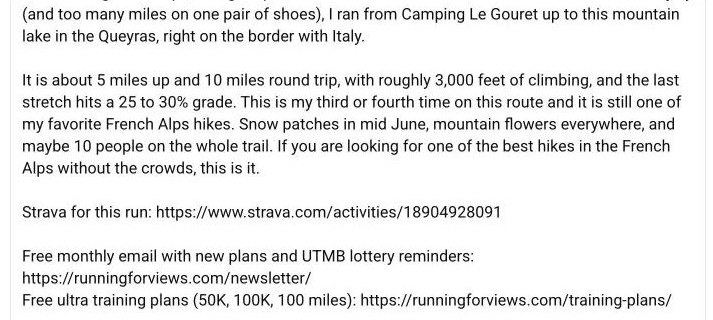
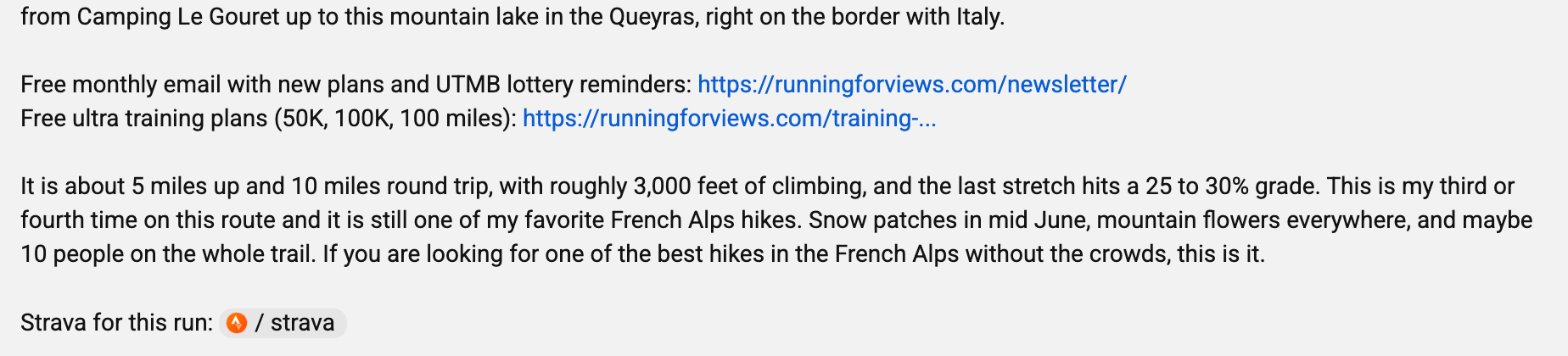
- One had the line in the wrong spot. The Lac du Grand Laus video had the newsletter line in paragraph 4. Fix: move it up to paragraph 2.
- Four had no newsletter line at all, plus an old Instagram link. These were a shoe comparison (5,758 views), a single shoe review (2,538), a fueling video (1,474) and a 100 mile training plan video (2,529). Fix: add the newsletter line as paragraph 2 and remove the Instagram lines.
- One had a dead link. A marathon training plan video linked to a Google Sheet that no longer existed. Fix: remove the dead link for now. The plan link goes back once its post on Jake's site is live.
Here's the Lac du Grand Laus description before the fix. The newsletter line is down in paragraph 4, under the route details and the Strava link, where most viewers never scroll:
And after, on the public video page: the newsletter line sits right under the opening paragraph, and nothing else changed:
It also checked the links that looked risky but weren't. Two other training plan sheets (including the one on a video with 29K views) were public and opened fine, so they stayed.
3. It wrote the exact new text for each of the six, and checked that nothing else changed. This matters more than anything. The AI assistant didn't "improve" Jake's descriptions. It moved or added one line, removed the dead or outdated lines, and every other word stayed exactly as Jake wrote it.
4. One yes. It sent the whole list to me as one message: six videos, what was wrong with each, and the exact fix. I said yes once, not six times. (Changes to Jake's channel always need a yes in our house. I wrote about which jobs my AI assistant can do without asking, and this isn't one of them.)
5. It saved the fixes and checked the public pages. After the fixes were saved in YouTube Studio (YouTube's behind-the-scenes dashboard for your channel), the AI assistant opened each public video page, the one viewers see, to confirm the new text was really there. Saved isn't the same as live until you've looked.
The result: all 73 videos now have the newsletter line in paragraph 2.
This wasn't the first round, by the way. A week or so earlier, we found other descriptions linking to training plan spreadsheets that had been deleted. Those dead links were swapped for links to the plan posts on Jake's site, where each plan now has a signup box ("Get the plan as a spreadsheet"). Only the line with the dead link changed. So an audit isn't a one-time thing. It's worth running again whenever your rule changes or links move.
How to run it for a client (or yourself)
Step 1: Write the rule down with your client
Agree on two things: where the newsletter line goes (we use paragraph 2) and the exact words of the line. Write both in your notes for that client. Your client decides this. You and the AI assistant only check against it.
Step 2: Get the descriptions in front of your AI assistant
On a public video page, the description sits under the video. On a computer, click Show more to open the whole thing (on a phone, it's more). Copy the full text and paste it into your chat, with the video's title on top. Do this for every video, or start with the 10 or 20 most watched ones if the channel is big.
Step 3: Ask for the audit
Paste something like this:
Here is my client's rule for YouTube descriptions: the newsletter line goes as the second paragraph, right after the video's opening. The line is exactly: [paste the line].
Check every description below against the rule. Make a list of only the ones that need a fix. For each one, tell me: the video title, what's wrong (line missing, in the wrong paragraph, old social links, or a link that looks broken), and the exact new description text. Change nothing else. Don't reword anything. Then open every link in the descriptions and tell me which ones don't load or don't open for the public.
Step 4: Let your AI assistant check the links
Your AI assistant opens every link and tells you which ones are dead. That's how the audit on Jake's channel found the deleted spreadsheet link, and confirmed the other plan sheets still opened for the public. I didn't click a single link.
One catch to tell it about: when you're signed in to your client's Google account, a private Google Sheet still opens for you, even though viewers would hit a "you need access" page. So ask your AI assistant to check that every Sheet link is shared publicly, not just that it opens. (If your AI assistant can't open web pages at all, it will say so, and then the links are a quick check for you.) Anything dead goes on the fix list.
Step 5: Send your client one message for one yes
One list: video title, what's wrong, the new text. One yes. That's much easier for a busy client than six separate questions, and it's a nice look for you.
Step 6: Save each fix in YouTube Studio
YouTube's help page on editing video settings (checked November 6, 2026) gives these steps on a computer:
- Sign in to YouTube Studio (studio.youtube.com).
- In the left menu, select Content.
- Click the video's title or thumbnail.
- Edit the description, then select Save.
Descriptions can be up to 5,000 characters, so one more line won't break anything.
Step 7: Check the public page
Open each fixed video the way a viewer would, click Show more, and make sure the newsletter line is there in paragraph 2. Then tell your client it's done.
The part that stays yours
The AI assistant read 73 descriptions so nobody had to. But a person set the rule, the words in every description are still Jake's, and nothing was saved until there was a yes. That's the split I like: you decide once, and the AI assistant does the rereading.
If your client's videos also turn into blog posts and emails, here's how one of Jake's videos becomes three pieces of content. And if you want somewhere to keep audits like this one, my Command Center tracker is where all of mine live.
Want more little systems like this, with every step written out? Join the newsletter.