My AI assistant makes my Pinterest pins now. But the first ones it made? Not it. They were fine. They just weren't me.
Getting from "fine" to "oh my god that's so much better, I love it" took four rounds of feedback in one afternoon. None of it was technical. It was me saying what felt off, the same way you'd talk to a designer friend.
Here's exactly what happened, what I said, and the tips I'd give anyone trying to get AI to design things their way.
Round 1: "Not really loving the aesthetic"
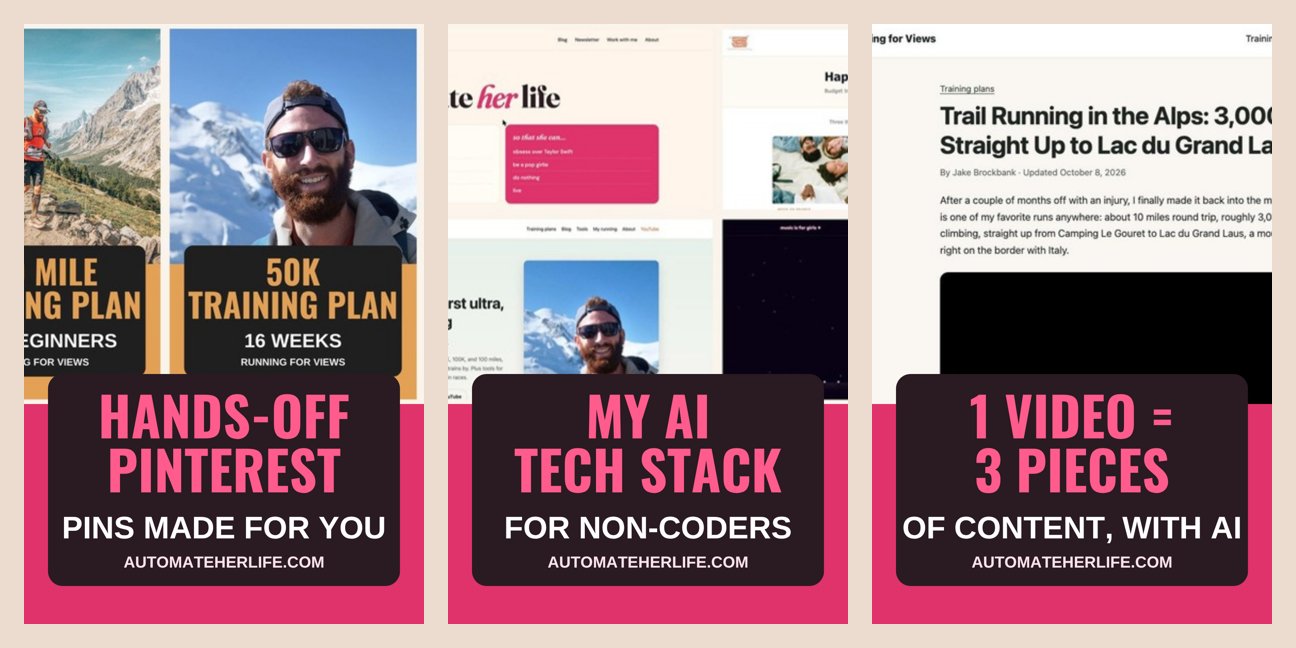
The first batch was made in Canva: a screenshot on top, a dark box with big pink capital letters, my web address at the bottom. Clear, readable, totally generic. It looked like a thousand other pins.
What I said: "im not really loving the aesthetic of these pins, maybe we can use the fonts from the site, brand it up a bit?" And then: "i want it to look super professional but cute."
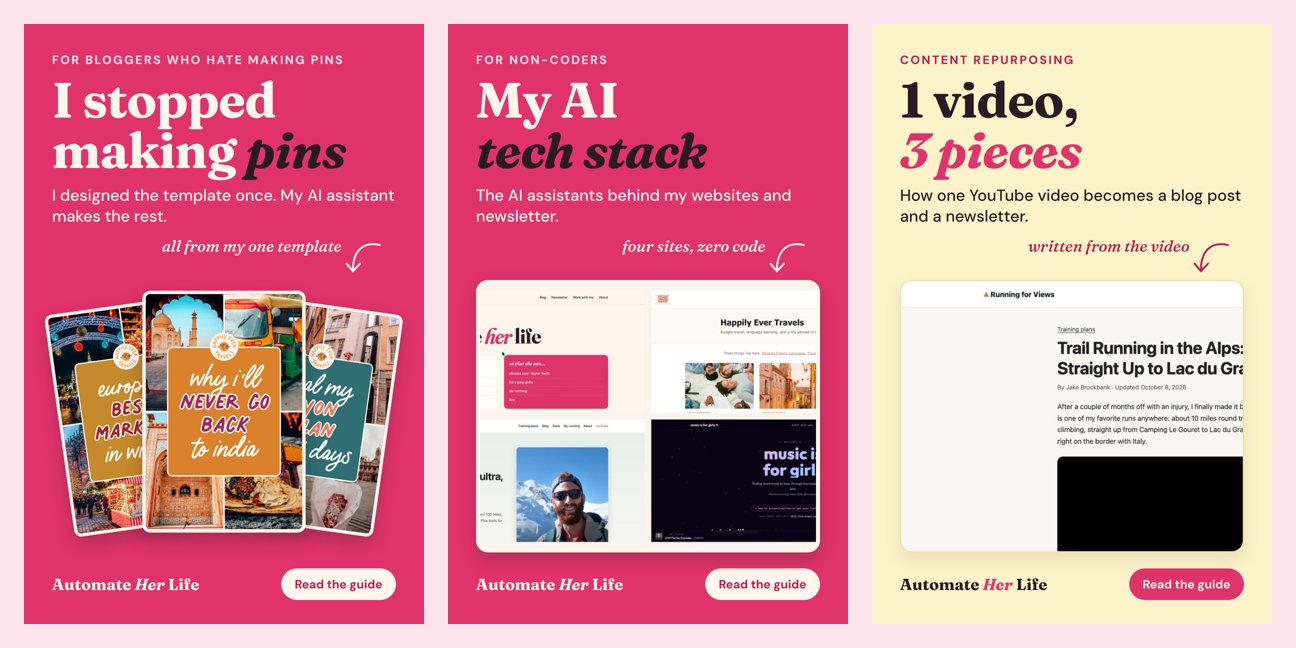
What changed: my assistant rebuilt the pins in the exact fonts and colors of my website: the serif headline with one pink italic word, the cream, pink and butter yellow backgrounds, the "Automate Her Life" wordmark and a little "Read the guide" button. Now a pin looks like it belongs to my site, because it's made from the same pieces.
Tip: you don't need design words. "Professional but cute" was enough, because I pointed at something it could copy: my own website.
Round 2: "An arrow pointing to it"
Some pins used screenshots that don't explain themselves. A screenshot of a spreadsheet is just a spreadsheet.
What I said: "maybe if the images dont make sense, we could have an arrow pointing to it and another little call to action."
What changed: every pin got a short handwritten-style note with a curly arrow pointing at the picture: "my real pin schedule," "four sites, zero code," "copy these prompts." It's a tiny thing, and it makes the whole pin feel personal and tells you what you're looking at.
The first version of the arrow overlapped the words, so my assistant fixed the layout. Tip: ask to see a batch side by side on one image before anything goes up. That's how you catch little things like that in one look.
Round 3: "It's not AI just doing everything"
Then I read the words on the pins, and a few of them bugged me. Lines like "Here's the system that does it for me" made it sound like I just press a button.
What I said: "a huge part of this site is that i want it to be about using ai to get YOUR creativeness out there... its not ai just doing everything, its just like a personal assistant that any CEO would have."
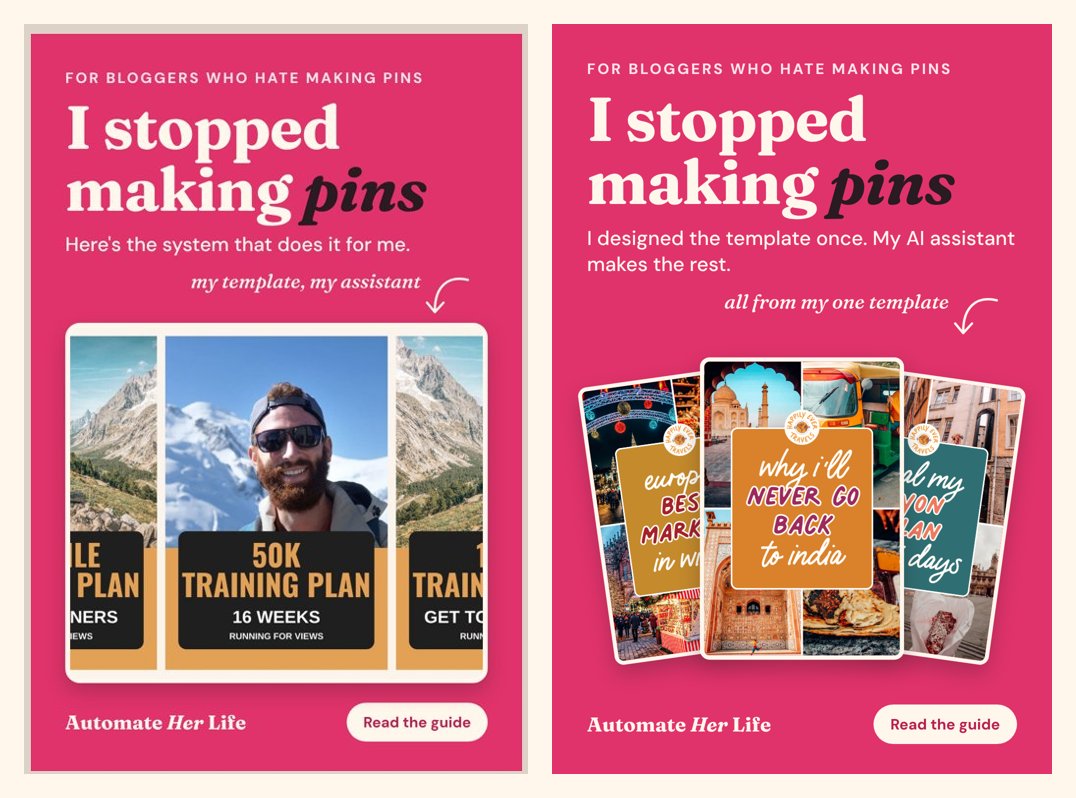
What changed: every line got rewritten around that idea. "Here's the system that does it for me" became "I designed the template once. My assistant makes the rest." A few minutes later I added one more thing: "assistant needs to be clear that its AI." So now it always says "my AI assistant," never just "my assistant."
Tip: read the words, not just the pictures. AI copy tends to overclaim what AI does. If a line doesn't sound like how you'd describe your own work, push back.
Round 4: Use my best stuff
Two of the pins showed my husband Jake's running pins as the example of "pins my AI assistant made." They were fine. But my travel blog pins are much prettier, and they're my own designs.
What I said: "jakes pins arent as cute as my HET ones, so maybe we use those to brag about AI using my design."
What changed: those two pins now show a little fan of my Happily Ever Travels pins instead. Which is the whole point: the design is mine, the AI assistant just makes more of it.
Tip: your AI assistant doesn't know which of your work you're proudest of. Tell it, and let it show off your best stuff.
My tips for getting AI designs you love
- Point at something that's already you. Your website, your favorite past design, a template you love. "Make it look like my site" beats a page of design words.
- Describe the feeling. "Professional but cute," "too generic," "not me." That's real feedback, and it works.
- Look at the whole batch at once. Ask for one image with every design side by side. Problems jump out, and so does what's working.
- Read every word. Make sure it says what you'd say, about what you actually did.
- Say what you love, too. When something works, say so. It tells your assistant what to keep.
- Turn your feedback into rules. Once you've said something twice, make it a rule your assistant reads every time. Mine now has a short list: always "AI assistant," the creator's ideas and designs stay theirs, pin words must match the post. Future pins start from there, so I never give the same feedback again.
That last one is the real time-saver. Four rounds of feedback, once. After that, the pins just come out right. (Here's how my whole hands-off Pinterest workflow runs, and the rules I give my AI assistant.)
Want to see the pins in action? Follow along on Pinterest, or join the newsletter for new guides as they come out.